Soledad Documentation
Set up Mailchimp for WordPress forms and place newsletter signup forms in header or footer areas.
36 articles across 15 sections.
How to Set Up Newsletters in MailChimp
To setup your Mailchimp sign-up form, please do following steps:
-
First of all, you need to set up your mailchimp, please read this guide to know how to set up Mailchimp for WordPress: https://kb.mc4wp.com/
-
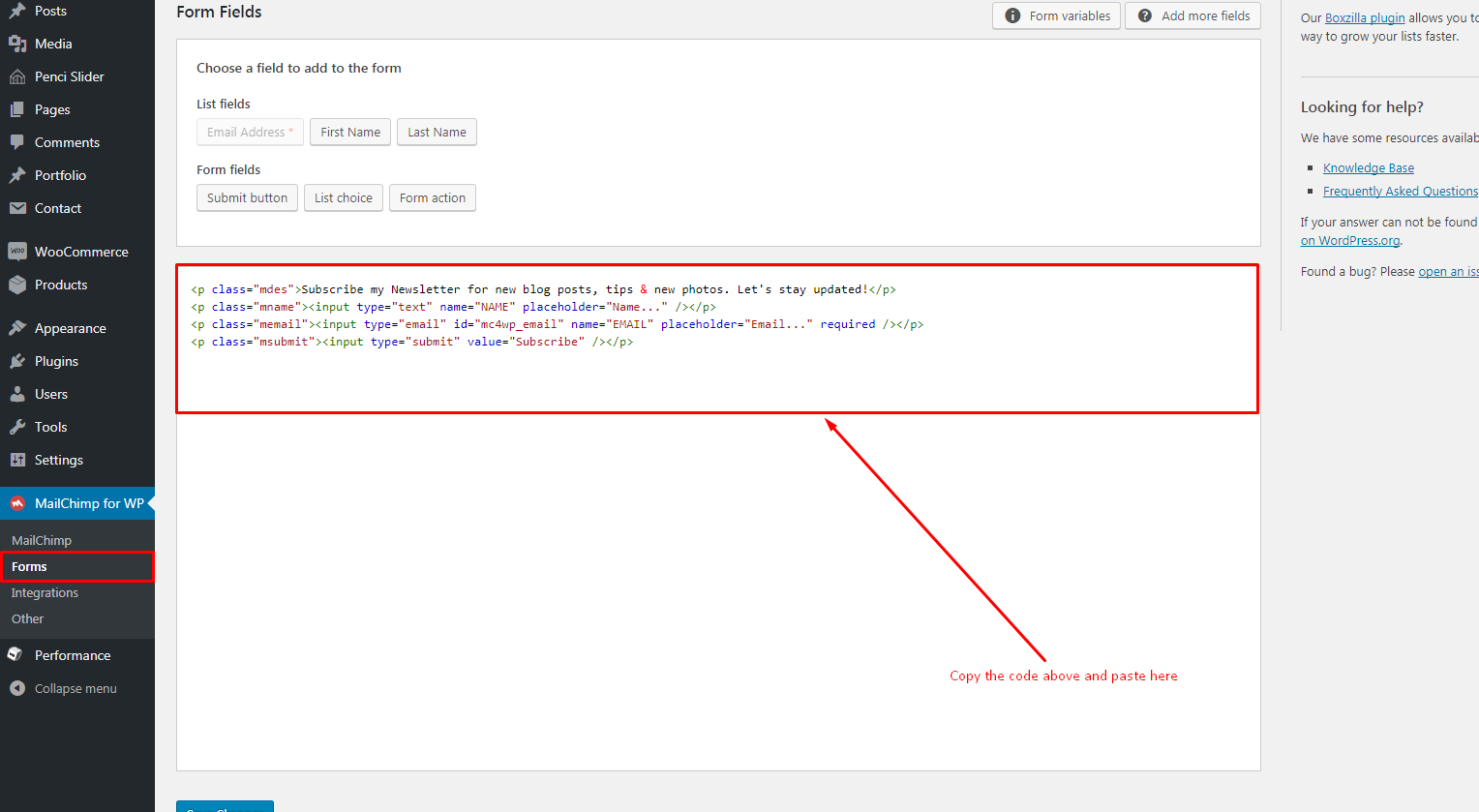
When you create form, please use the following mark-up and paste it to your form ( You can edit the text from this markup to your text if you want ):
<p class="mdes">Subscribe my Newsletter for new blog posts, tips & new photos. Let's stay updated!</p>
<p class="mname"><input type="text" name="NAME" placeholder="Name..." /></p>
<p class="memail"><input type="email" id="mc4wp_email" name="EMAIL" placeholder="Email..." required /></p>
<p class="msubmit"><input type="submit" value="Subscribe" /></p>
Click the image to view a larger version.
-
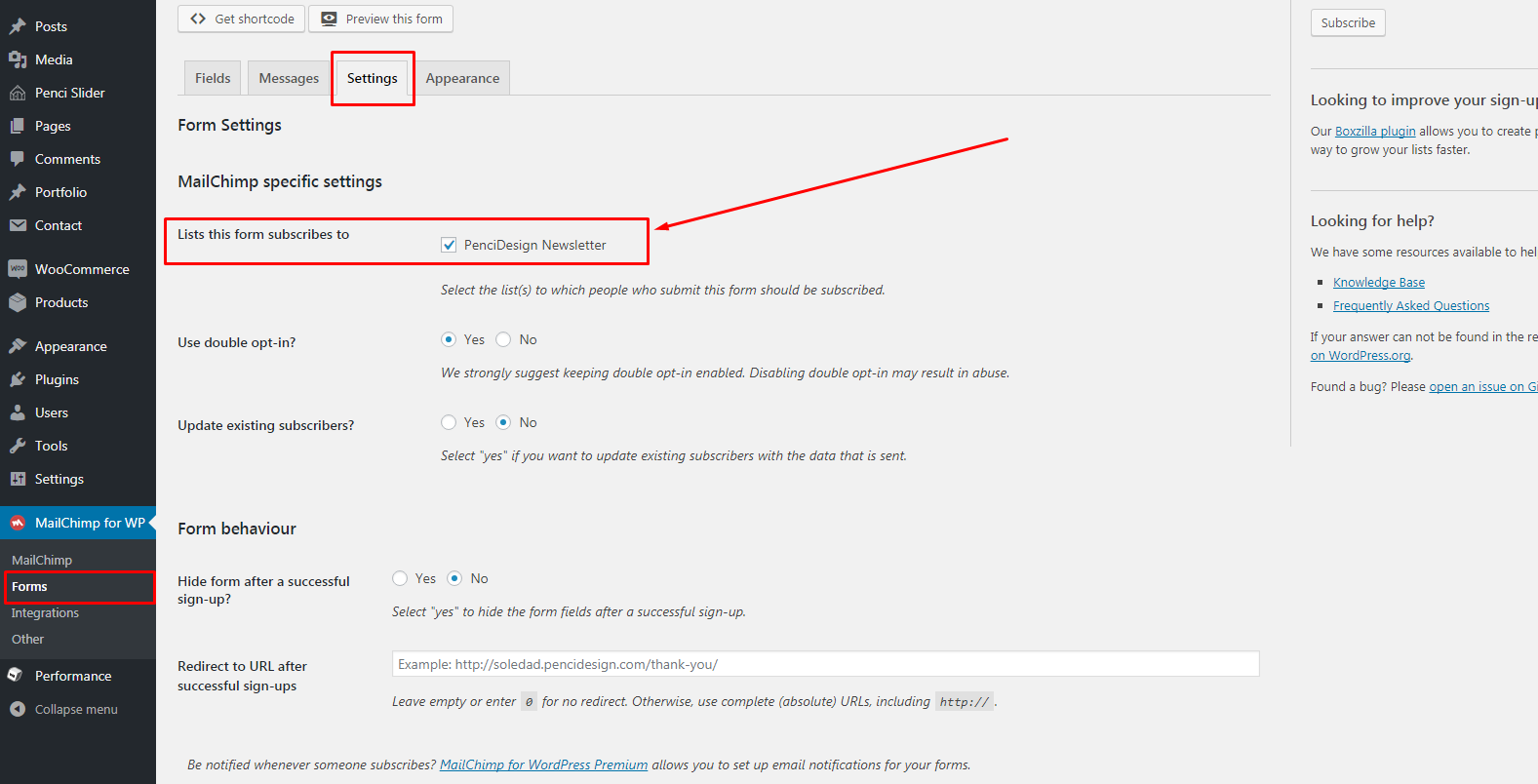
Select a list for your subscrible in your lists
Click the image to view a larger version.
-
If you want to put Sign-Up Form on your Header ( below the slider ), you can drag & drop widget Mailchimp SignUp Form to sidebar Header Sign-Up Form If you want to put Sign-Up Form on your Footer, you can drag & drop widget Mailchimp SignUp Form to sidebar Footer Sign-Up Form