Soledad Documentation
Configure archive layouts with Customizer or build custom archive templates using Elementor.
36 articles across 15 sections.
Category, Tags, Search, Author, Archive Pages
With Soledad, you can select 2 ways to build your Category, Tags, Search, Archive Pages, below is 2 method:
Method 1: Use Customizer to Config the Category, Tags, Search, Archive Pages ( Simple & Easy )
If you want to change the layout for category page, search page, tag page, archive page, author page... you can go to Appearance > Customize > General > Category, Tag, Search, Archive Pages
If you want to select a different layout for specific categories, you can go to Dashboard > Posts > Categories > Edit a category you want to change the layout > scroll down on "Select Layout For This Category" and select the layout as you want for that category
To adjust the font size or show/hide elements on the layouts, you can check options via Customize > Posts Layouts
If you would like to adjust the amount of posts shown per page on Archive page (category page, search page, tag page...),you can go to Dashboard > Settings > Reading > Blog pages show at most and change the number to the value as you desired.
Method 2: Use Elementor to build your Category, Tags, Search, Archive Pages ( More Customize )
From Soledad 8.1.3 - we've added the template builder for Category, Tags, Author, Search, Archive Pages to help you can build everything flexible and customize more.
To get it works, please do follow steps below:
-
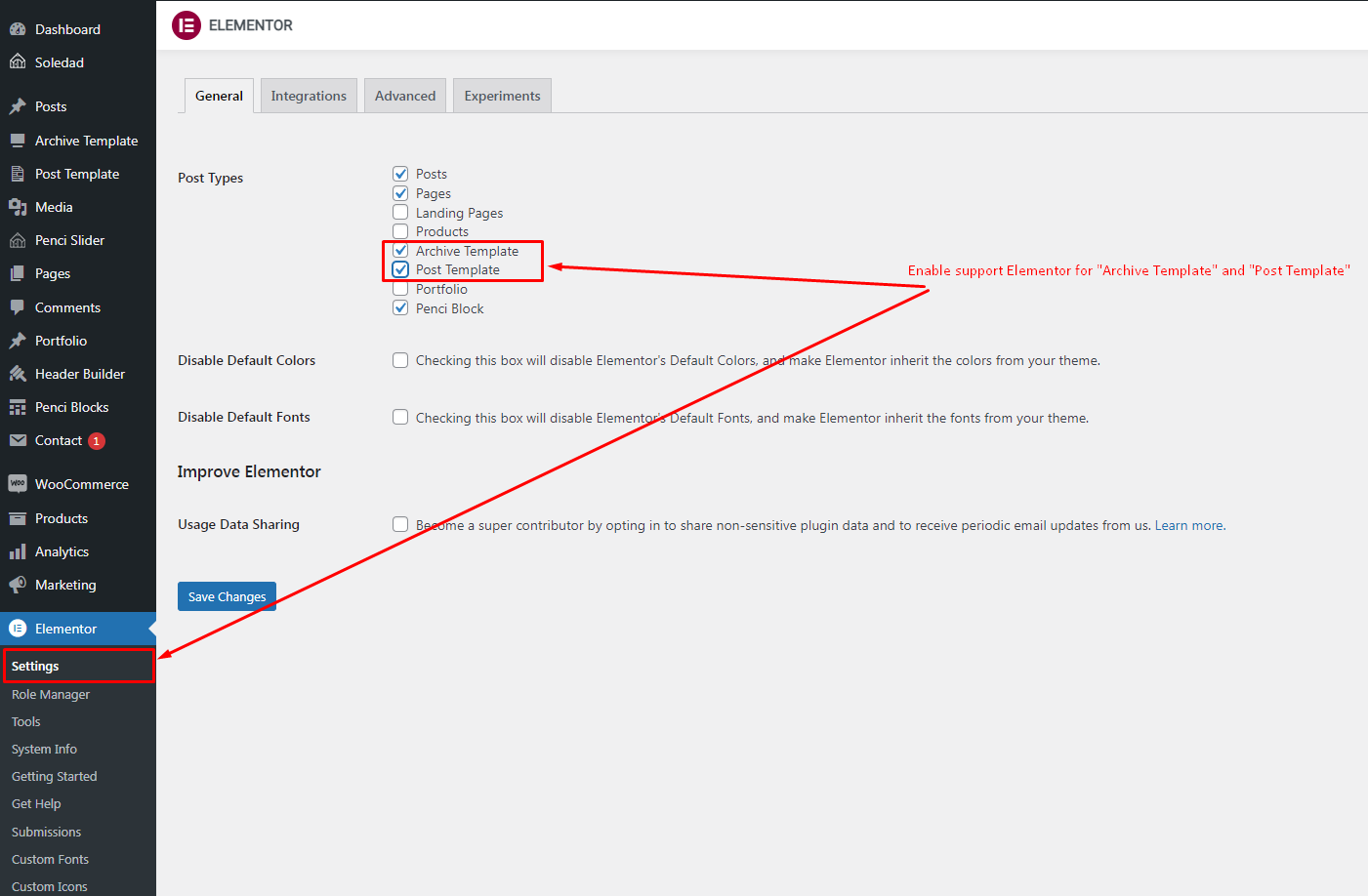
Step 1: Go to Dashboard > Elementor > Settings and enable support Elementor for Archive Template
Click the image to view a larger version.
-
Step 2: Go to Dashboard > Settings > Permalinks and click "Save Changes" to make sure the permalinks updates for the "Archive Template" post type.
-
Step 3: Build your Archive Templates Go to Dashboard > Archive Template > and add new Archive Template and set a Name for this Archive Template ( example: "Category Template" for building your Category Template ) then publish & edit this template by using Elementor. When you edit this template by using Elementor, you can use widgets from Elementor like:
-
Archive - Title: to get the Category, Tags, Search, Author, Archive pages title display
-
Archive - Description: to get the description of Category, Tags, Search, Author, Archive pages for display
-
Archive - Breadcrumb: to get the breadcrumbs showing for Category, Tags, Search, Author, Archive Pages
-
Archive - Taxonomies: to get the taxonomies Category, Tags, Search, Author, Archive Pages
-
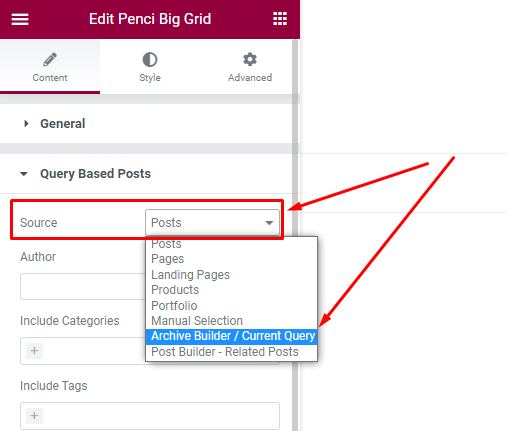
"Penci Big Grid", "Penci Featured Slider", "Penci Latest Posts", "Penci Featured Cat", "Penci Small Lists"... or other Posts Widgets: to get the posts from the Category, Tags, Search, Author, Archive Pages showing. Note Important: When you use Posts Widgets from Elementor to show the posts from the Category, Tags, Search, Author, Archive Pages, you need to edit the widget you're using and click on the "Query" section and on the "Source" - select "Archive Builder / Current Query" - check the image below:
Click the image to view a larger version.
-
-
Step 4: Select Archive Template for Display Go to Dashboard > Appearance > Customize > General > Category, Tags, Search, Archive Pages > on "Achive Builder Templates" and select the template you want to showing for "Category Pages", "Tags Pages", "Author Pages", "Day/Times Pages" or "Search Results Pages" Also, you can select a custom builder template for specific categories by going to Dashboard > Posts > Categories > Edit a category you want to change the builder template > scroll down on "Select Custom Archive Template for this Category" and select the template as you want.